Shipping classes
Shipping classes group your products so shipping cost can depend on what is in the cart — for example a bulky-goods surcharge, or a rule that only ever applies to letters.
What a shipping class technically is
A shipping class is an entry in the choice list of the product metafield
forsellers.shipping_class. The app creates that metafield definition the first time you open
it, pre-filled with three classes:
Brief · Päckchen · Paket
Rename them or delete them under Shipping Classes — they are only a starting point. Because the metafield is a choice list, the field appears as a dropdown on the product in your Shopify admin, so nobody has to remember exact spellings.
Assigning a class to a product
- Open the product in your Shopify admin.
- Scroll to the metafields and find Shipping Class (
forsellers.shipping_class). - Pick one of your classes from the dropdown and save.
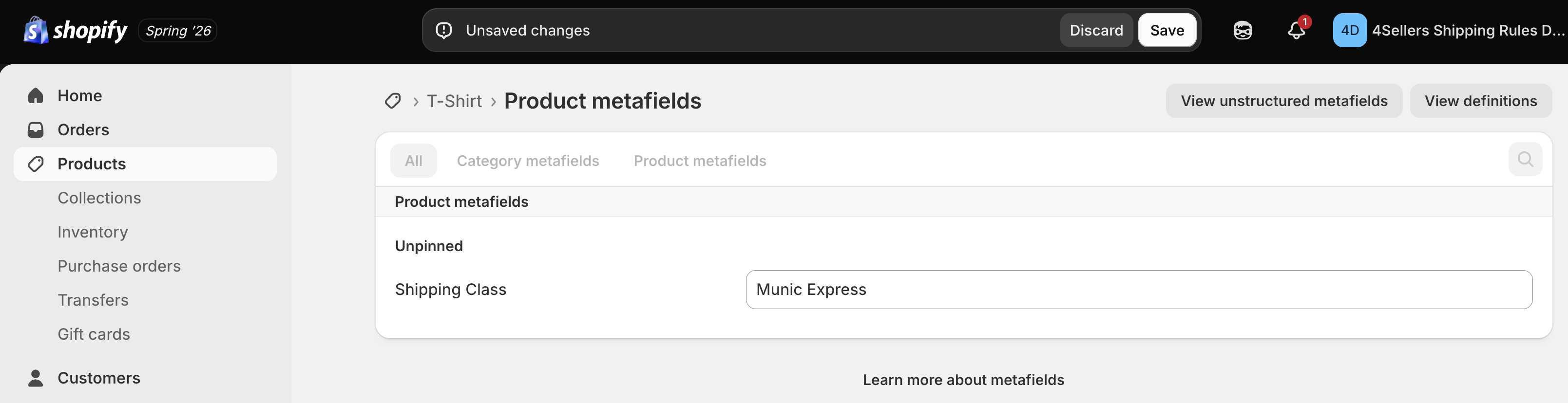
Renaming and deleting
If you rename a class, products keep the old value and rules keep referencing the old name. Neither is updated automatically — the app shows this warning before it saves. After a rename, update the affected products and rules yourself, otherwise those rules silently stop applying. The same is true when you delete a class.
How classes are used in a rule
Shipping classes are not optional. A rule with no class assigned fails its class check and is skipped — regardless of zones, rates and restrictions. Every rule needs at least one class.
And once a rule has classes, the check is strict: every single product in the cart must carry a class that the rule lists. One product without a matching class — or with no class at all — and the whole rule is skipped.
That is what makes classes useful: a rule for Brief can only ever win for a cart that
contains nothing but letters.
Surcharges per class
For every class in a rule you can add:
| Surcharge | How it is calculated |
|---|---|
| Fixed | Per item: the amount × the quantity of that cart line |
| Percentage | A percentage of the cart total, added once per matching cart line |
The percentage is calculated on the cart total, and it is applied for each cart line that matches a class. Two matching lines with 5 % each therefore add 10 % of the cart total. Use fixed surcharges when you want a truly per-item amount.